


As bundles progress through the governance lifecycle and evidence is collected, Findings document issues, review notes, and follow-up actions. Each finding assigns a concern to someone for resolution within a defined timeframe. Contributors can add findings at any stage. Approvers can add findings to stages they haven’t approved yet.
Each finding is tied to a specific approval stage and can include supporting evidence. Multiple findings can be added to the same bundle. Findings help teams:
-
Identify risks such as bias, security gaps, or regulatory non-compliance.
-
Evaluate compliance with governance standards and ethical guidelines.
-
Suggest improvements to enhance performance, fairness, or accountability.
Assigned tasks help contributors respond to findings and keep the review process moving forward. Review status options are:
-
Approved: Grant full approval with no conditions.
-
Conditional approval: Grant approval with attached findings. Approval is automatically revoked if the findings are not resolved by their due dates.
-
Reject: Decline approval and document the findings that must be addressed.
Access the governed bundle directly to add or view findings:
-
Go to Projects and open the relevant project.
-
From the sidebar, select Govern > Bundles.
-
Choose the bundle where you want to add or view findings.
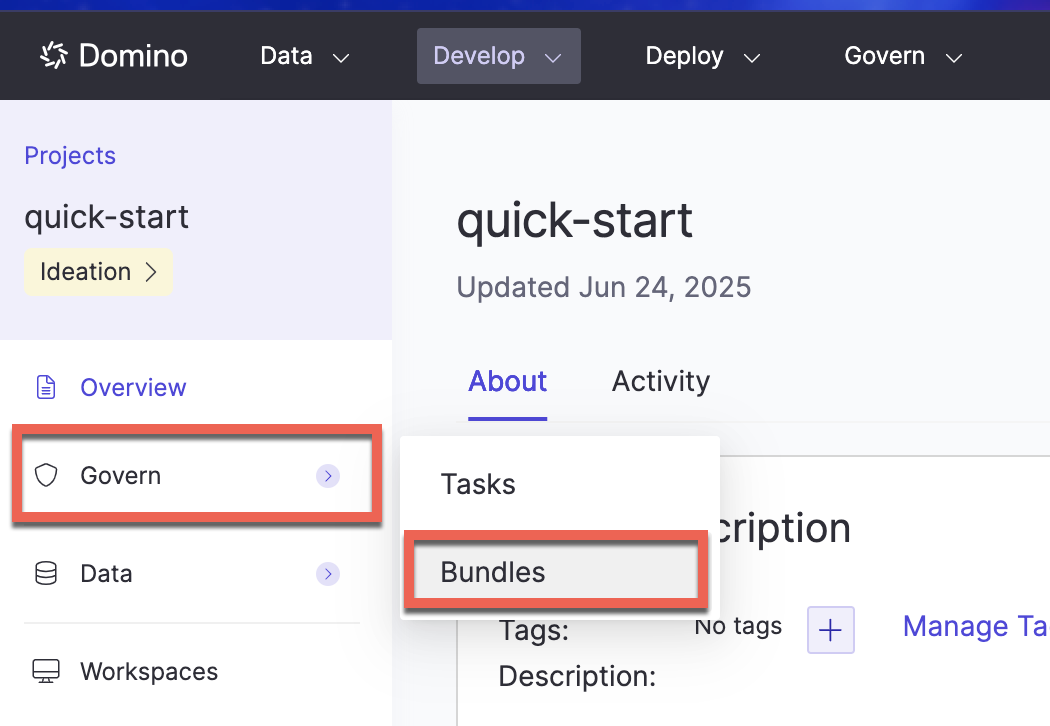
You can add findings from two tabs:
-
Evidence: Scroll down and click Add Finding.
-
Findings: Click an existing finding to view, or click Add Finding to add a new one.
Fill out the required fields, including the finding name, approval level, severity, assignee, and approver.
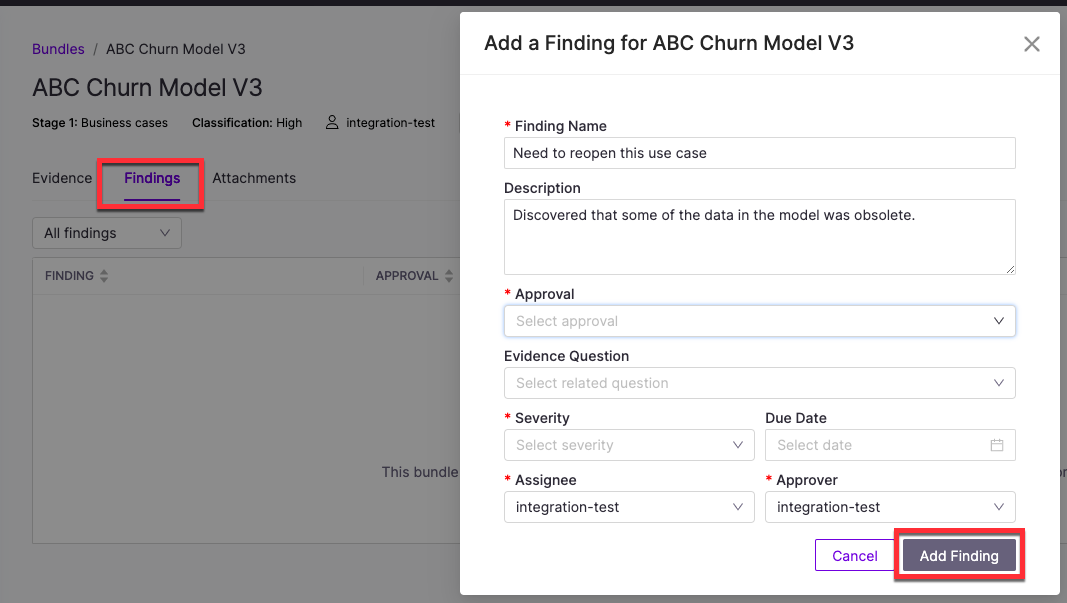
You can also add an optional description and due date. Repeat as needed for additional findings. Click Add Finding when finished.
If you’re assigned a task related to a finding:
-
Go to Projects, open the relevant project, and select Govern > Tasks.
-
Click the task to open it, then click the finding link in the task description to view details.
-
On the Findings tab, check the Status menu to see the current stage.
-
Leave a comment to provide information or context. You can use Markdown and MathJax in your comment, or @mention people.
-
Click Send when finished.
-
Review and approve bundles: submit bundles for formal approval
-
Evidence: learn about manual evidence, automated checks, and monitoring checks
-
Gates: control governed actions based on approval status