


Domino Apps let you turn project code into interactive dashboards, reports, and other web-based tools. Publish directly from any Git branch without cloning projects or switching environments manually.
A project can host multiple apps, each with its own configuration and lifecycle to support separate dev/staging/production workflows. Control data access with a single checkbox that enforces secure, auditable access and prevents raw dataset exposure. Stakeholders can request access directly in Domino, with every action logged.
Each App runs in its own environment with:
-
Independent compute environment and hardware tier
-
Dedicated branch or revision
-
Custom launch script that starts the web server
-
Deep linking support to access specific views within the App (contact your Domino admin to enable - see Configuration Settings for Apps)
-
Custom URL path for easier sharing
Domino guides you through App publication in the UI. The process includes these steps:
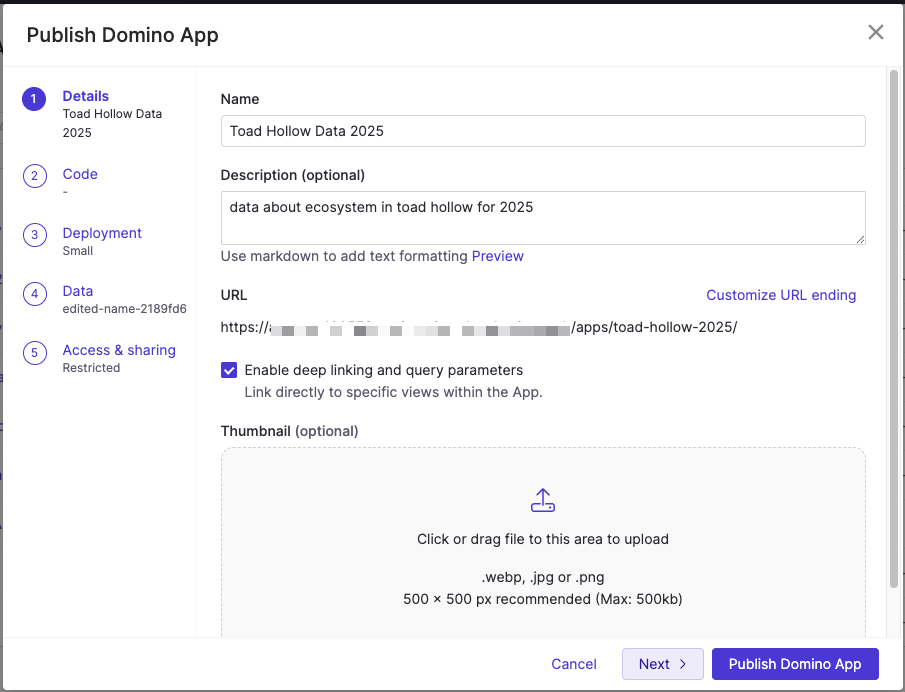
-
Go to Deployments > Apps & Agents and select Publish App.
-
Enter a name and optional description. For Git-based projects, select a branch or revision.
-
Choose a compute environment, hardware tier, and launch file (the script that starts the your web server).
-
Attach required datasets or data sources.
-
Set access controls and optionally define a custom URL path (for example,
/apps/demo). -
If available, select Enable deep linking to link to specific views within the App.
-
Click Publish Domino App.
The App appears in your project’s Deployments list. You can share its link, adjust permissions, or update its configuration from the App’s Overview page. You can view Apps not associated with the current project by going to Deployments > Apps & Agents from the top toolbar.
Domino enforces access and sharing at the proxy level before any request reaches your App logic. Configure these settings when you publish the App or later through the Share App dialog. Control who can view an App by selecting a sharing mode:
- Restricted
-
-
Only users you explicitly list and Project collaborators can view or edit the App
-
The Access & sharing view lets you specify the users or organization that can access the App
-
- Anyone in Domino
-
-
Anyone with a Domino account can view or edit the App
-
No user management options appear in the Access & sharing view
-
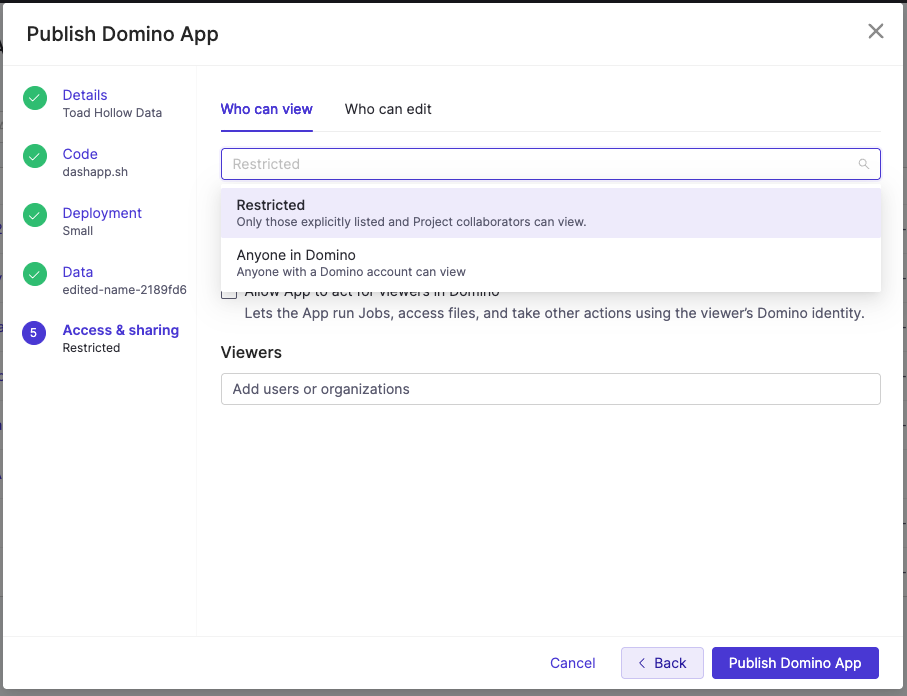
You can always manage project contributors who act as app editors. After publication, access is managed through the Share App dialog.
Share App dialog and notifications
The Share App dialog lets you review pending requests, grant or deny access, and track notifications.
-
Pending requests: Pending requests appear with Accept and Deny options.
-
Access request notifications: Domino notifies users by email and within Domino whenever someone requests access. Notifications include the requester’s name, the app name, the project, and a link to the Share App dialog.
-
Access granted notifications: Domino notifies users by email and within Domino whenever you grant access. Notifications include the App name and a link to its details page.
Domino sends notifications whenever you grant a user access, whether through a request or a direct assignment.
By default, apps in Domino act with the identity and privileges of the app publisher, not the app viewer. This means all viewers share the publisher’s permissions when the app accesses Domino resources. Only SysAdmins or CloudAdmins can enable this feature.
However, some apps require each viewer’s identity to function properly. Enable Allow App to act for viewers in Domino when your app needs to:
-
Query datasets with row-level security based on each viewer’s permissions
-
Launch jobs or workloads on behalf of viewers
-
Access data sources that require viewer credentials
-
Perform any Domino action using the viewer’s identity instead of the publisher’s identity
After you enable this setting, you must restart the app for the change to take effect.
|
Important
| This App will have full access to Domino on behalf of each App viewer, including running Jobs, accessing files and data, and managing Projects. Only enable this if you trust the App to act responsibly with user-level permissions. App security and identity has details about configuration steps and security considerations. |
-
Apps in Domino gives an overview of how apps work within the Domino ecosystem.
-
Learn more about how Apps in Domino run and what identity and permissions are used.
-
Use Best Practices for Apps to make your apps easier to find and maintain.