


Governed bundles package models, artifacts, and evidence for review and approval. They’re the foundation of the governance lifecycle, and they autosave while you work.
You can apply multiple policies to a single bundle instead of creating separate bundles for each. This reduces duplication and simplifies tracking across overlapping compliance needs.
When a bundle includes policies with gates, those gates activate for governed actions in the project, such as deploying Apps or creating Endpoints. Gates stay active until all required approvals are granted.
To create a new bundle:
-
Open the project on which you want to create a bundle.
-
From the sidebar, select Govern > Bundles > Create Bundle.
-
Enter a Bundle Name.
-
Choose one or more policies from the drop-down list and click Create.
After creating a bundle, you can add evidence, files, and models. Manual evidence has steps for adding artifacts to bundles.
You can add files, artifacts, or job outputs to an existing governed bundle.
From a Domino File System project:
-
Click the code link in the right navigation.
-
Select Add to an existing Bundle.
From a Git-based project:
-
Click the artifact link in the right navigation and select the artifact.
-
Select Add to an existing Bundle and choose a bundle from the menu.
From a job:
-
Navigate to the job and go to the Output tab.
-
Select the output, then select Add to an existing Bundle and choose a bundle from the menu.
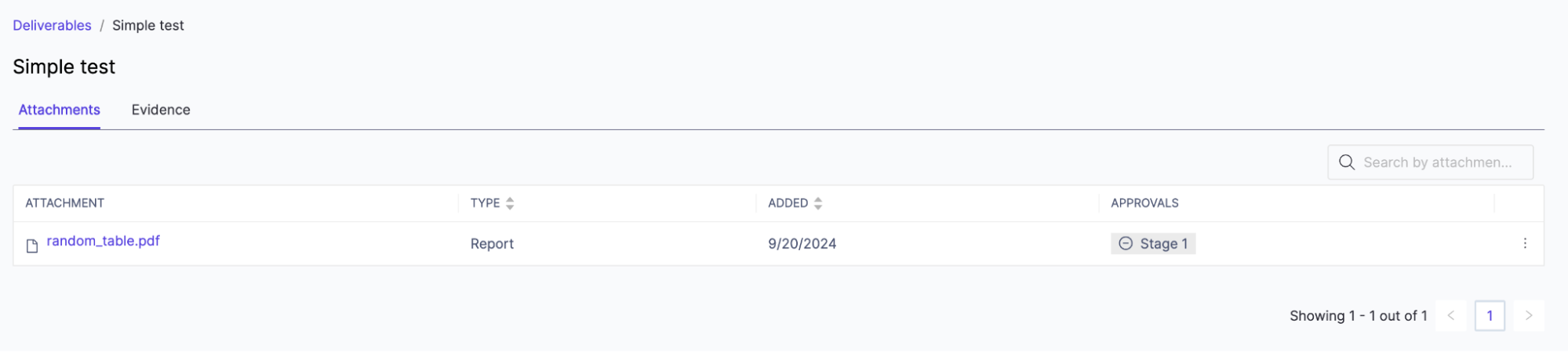
To confirm the addition, click Attachments in the bundle.
Governance Evidence Notebooks autosave in real time. Visibility rules and compliance checks trigger immediately as you make edits.
-
Automated checks: run validation checks during bundle progression
-
Add findings to a bundle: document review decisions and track issues
-
Send bundles for review: submit bundles for formal approval
-
Gates: control governed actions based on approval status