


After evidence is collected and findings are documented, bundles are submitted for formal stakeholder review. Practitioners can submit bundles for review at any stage, and approvers are notified when their input is needed.
A single bundle can now include multiple policies, allowing related governance requirements to be reviewed together. Approval flows also support per-bundle customization, so different bundles can have distinct approvers, even under the same policy.
Each approval stage is defined by the Governance administrator and may vary by policy type. Approvers can approve, reject, or grant conditional approval pending resolution of findings or required changes.
During a bundle review, approvers can document findings to capture and track issues that block compliance. Add findings to a governed bundle has details on findings attributes and workflows.
These attributes help drive progress toward production readiness. If a bundle includes multiple policies, review stages for each policy are grouped in the same interface to streamline approvals across overlapping requirements. An example approval flow might look something like this:
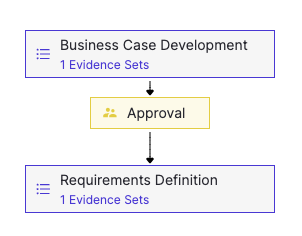
Findings are tied to approval stages and can include supporting evidence.
Once all findings are resolved, the approver marks the stage as Stages Complete to finalize the review.
How conditional approval works
A reviewer can approve a stage conditionally by attaching findings to the approval. These findings form a remediation plan.
If all findings are resolved by their due dates, the approval remains valid. If any findings are not resolved on time, the approval is automatically revoked.
Conditional approval allows practitioners to proceed to the next stage while outstanding findings are tracked and addressed.
After creating a governed bundle or editing an existing one, you can submit it for stakeholder review. This is typically done after completing requirements for each stage.
-
Go to Project, open the relevant project, and select Govern > Bundles from the sidebar.
-
Select the bundle that you want to send for review.
-
On Stage 1, fill in the required information and proceed through each stage.
-
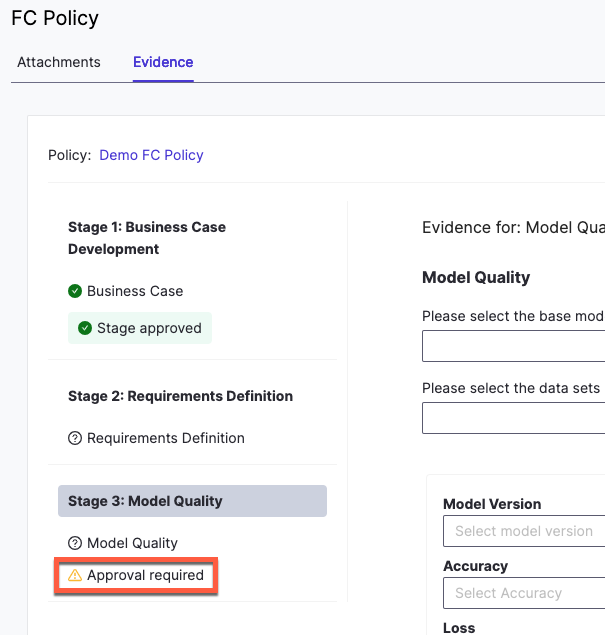
When you reach a stage with Approval required, click Start an evidence review.
-
Complete all required fields and click Request Review.
-
To confirm your submission, go to the Domino Welcome page and verify that a review task was created.
When a practitioner submits a bundle for review, you receive an email notification. Select Review & Approve in the email to open the Evidence notebook, which contains the approval questionnaire for the bundle.
-
Complete the approval questionnaire, if one exists.
-
Optionally, select Add Comment or Add Finding to document issues.
-
Select Approve. If there are open findings, a dialog displays them. Selecting a finding changes the button to Conditionally approve.
-
To grant conditional approval, select the findings to attach as conditions, then select Conditionally approve.
-
To grant full approval, select Approve without selecting any findings.
-
Reject: Decline approval and document the findings that must be addressed.
-
Gates: control governed actions based on approval status.
-
Add findings to a bundle: document review decisions and track issues.
-
Work with bundles: package models and artifacts for review