


Clinical Data Explorer is a Domino App for exploring, filtering, and visualizing clinical and general datasets.
Clinical Data Explorer is a dataset analysis application that runs as a Domino App. It lets users browse, filter, and visualize tabular data through an intuitive web interface, and ask questions about their data in plain English. It retrieves data via Domino APIs from datasets and Netapp Volumes accessible to the user, and supports CSV, Parquet, SAS (.sas7bdat), SAS Transport (.xpt), and CDISC Dataset-JSON formats.
Clinical Data Explorer is aimed at clinical data scientists, statistical programmers, data managers, and reviewers who work with clinical trial data (with particular focus on CDISC dataset standards), as well as anyone who needs a quick, no-code way to explore tabular data on Domino. It is especially useful for life-sciences teams, but it works equally well for general datasets.
-
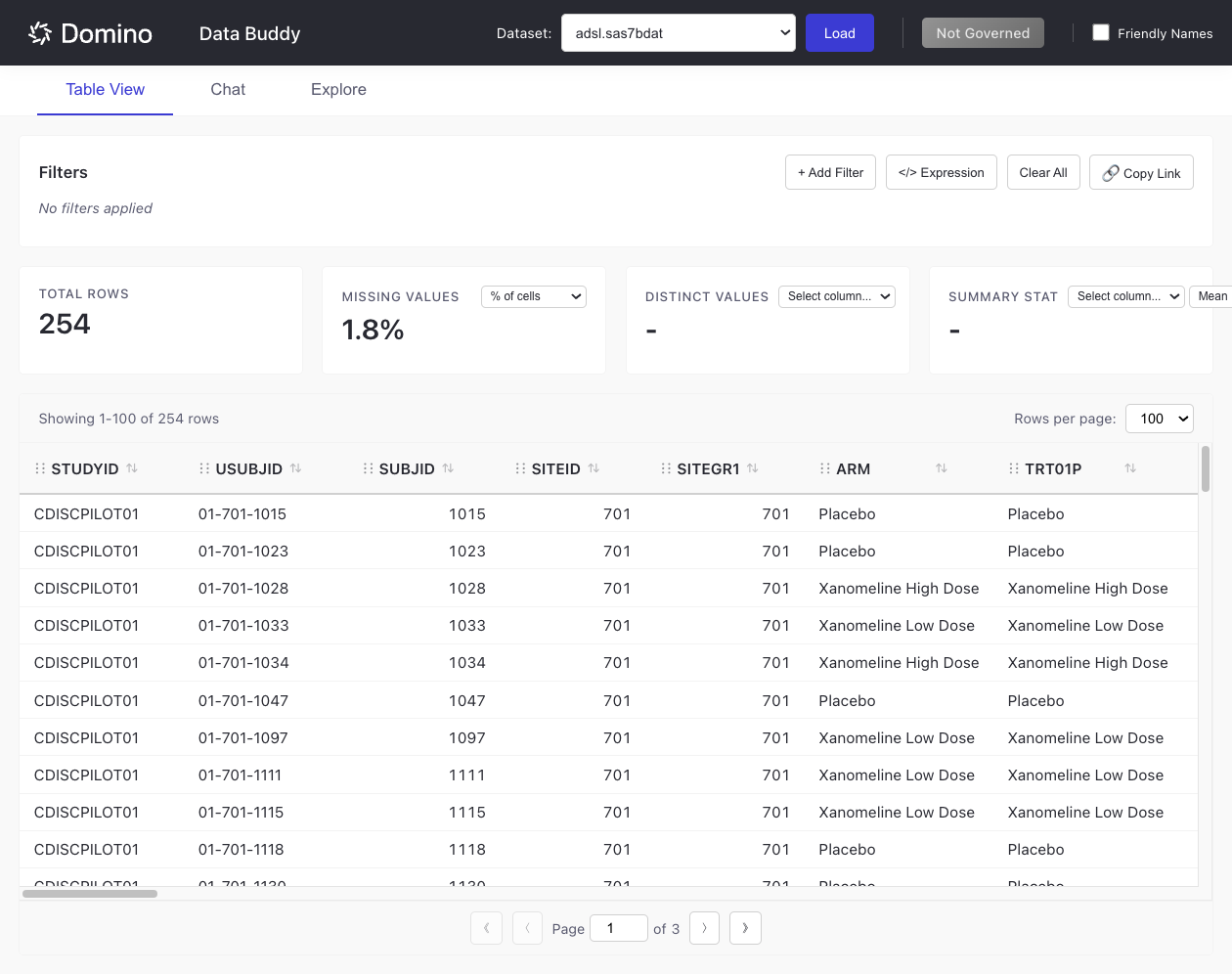
Table View: Browse and filter datasets in an interactive table, with built-in missing-values analysis, summary statistics, and distinct-value counts.
-
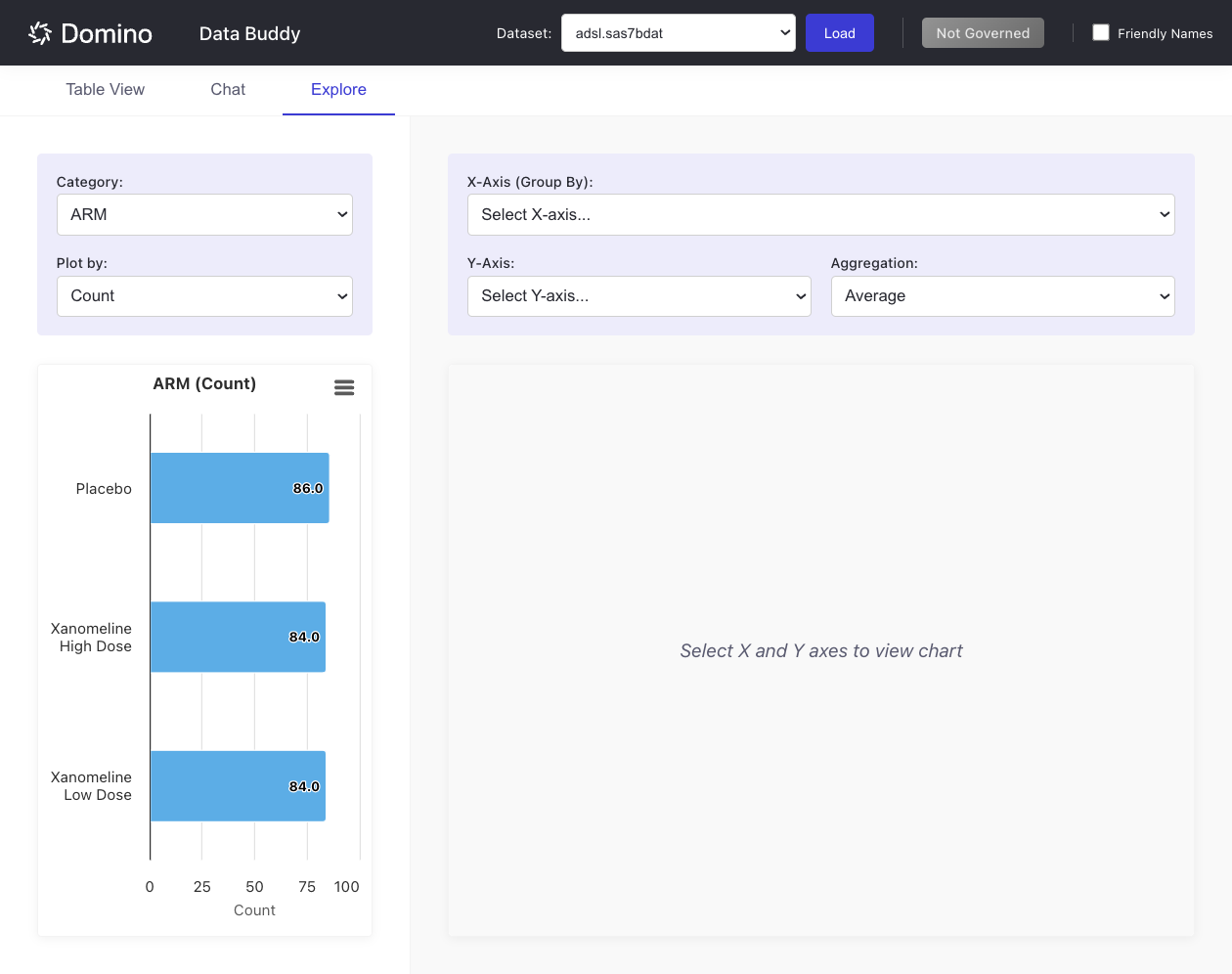
Explore: Build visualizations, including histograms, X-Y plots, and category bar charts.
-
Chat: Ask questions about your data in natural language (requires an LLM provider to be configured).
-
Friendly Names: Toggle human-readable labels in place of raw column names (for example, for ADaM variables).
-
Shareable views: Copy a link that preserves your current filters so colleagues see the exact same view.
-
Load a dataset. Choose a file from the dataset picker and click Load.
-
Filter the data. Use + Add Filter to build column/operator/value filters, or use Expression filters written in SAS WHERE, R dplyr, or Python pandas syntax. Click Copy Link to share a filtered view.
-
Explore visually. Switch to the Explore tab and pick a column for a histogram, or choose X and Y axes for an X-Y plot. Optionally group by a category.
-
Ask questions. If chat is configured, use the Chat tab to ask things like "What columns are in this dataset?" or "Show me the distribution of AGE."
To install this extension, follow the guidelines provided in the manual install instructions.
-
"No datasets found" - Configure the user permissions to access any datasets or Netapp Volumes in the given project context where the extension was opened from.
-
Chat shows "Not Configured" - Set the LLM environment variables; for cloud providers verify
LLM_API_KEY. -
Filters not persisting in links - Ensure "Deep linking and query parameters" is enabled in the Domino App settings.
Most installs work with the defaults. Use these settings when you need to support larger datasets, higher concurrency, or a specific LLM provider.
LLM and chat configuration
The Chat tab uses an OpenAI-compatible API. By default, the app assumes OpenAI, but it can also point at other providers by changing the base URL and model.
-
OpenAI: Set
LLM_API_KEYand optionally setLLM_MODEL(for example,gpt-4o). IfLLM_BASE_URLis not set, the app uses OpenAI’s default API URL. -
Domino LLM Gateway: For customer accounts with Domino’s installable LLM Gateway module, point
LLM_BASE_URLat the gateway’s OpenAI-compatible endpoint, setLLM_MODELto the gateway model/deployment name, and provideLLM_API_KEYif the gateway requires one. This lets the app use centrally governed models without changing app code. -
Azure OpenAI or other hosted gateways: Set
LLM_BASE_URLto the provider’s OpenAI-compatible endpoint, then setLLM_API_KEYandLLM_MODELas required by that provider. -
Local Ollama: Set
LLM_BASE_URLto an OpenAI-compatible local endpoint such ashttp://localhost:11434/v1and setLLM_MODEL. An API key is not required for local Ollama. -
Chat history: Use
CHAT_AGENT_MESSAGE_HISTORY_CACHE_SIZE_Bto control the in-memory chat history cache size, andCHAT_AGENT_MESSAGE_HISTORY_CAPto cap how many messages are retained per chat session.
Dataset size, caching, and concurrency
To configure your Domino project settings with regards to dataset size, concurrency, and how downloaded files, MCP server DataFrames, and session metadata are cached, you can follow the guidelines in the Clinical Data Explorer README.md.
|
Note
|
The README points to the |
Production server settings
See the Clinical Data Explorer README.md for information on configuring your production server settings.