


You can launch a Domino workspace and start using a coding assistant in under five minutes without any environment customization or manual extension installs.
-
Open your Domino project (or create a new one).
-
Go to Workspaces and click Create New Workspace.
-
Select the Domino Standard Environment, which includes all coding assistant tooling.
-
Choose your IDE, such as VS Code, JupyterLab, RStudio, or Jupyter. In VS Code, all three agents come as extensions. For other IDEs, Claude Code and Codex work as CLI tools.
-
Click Launch.
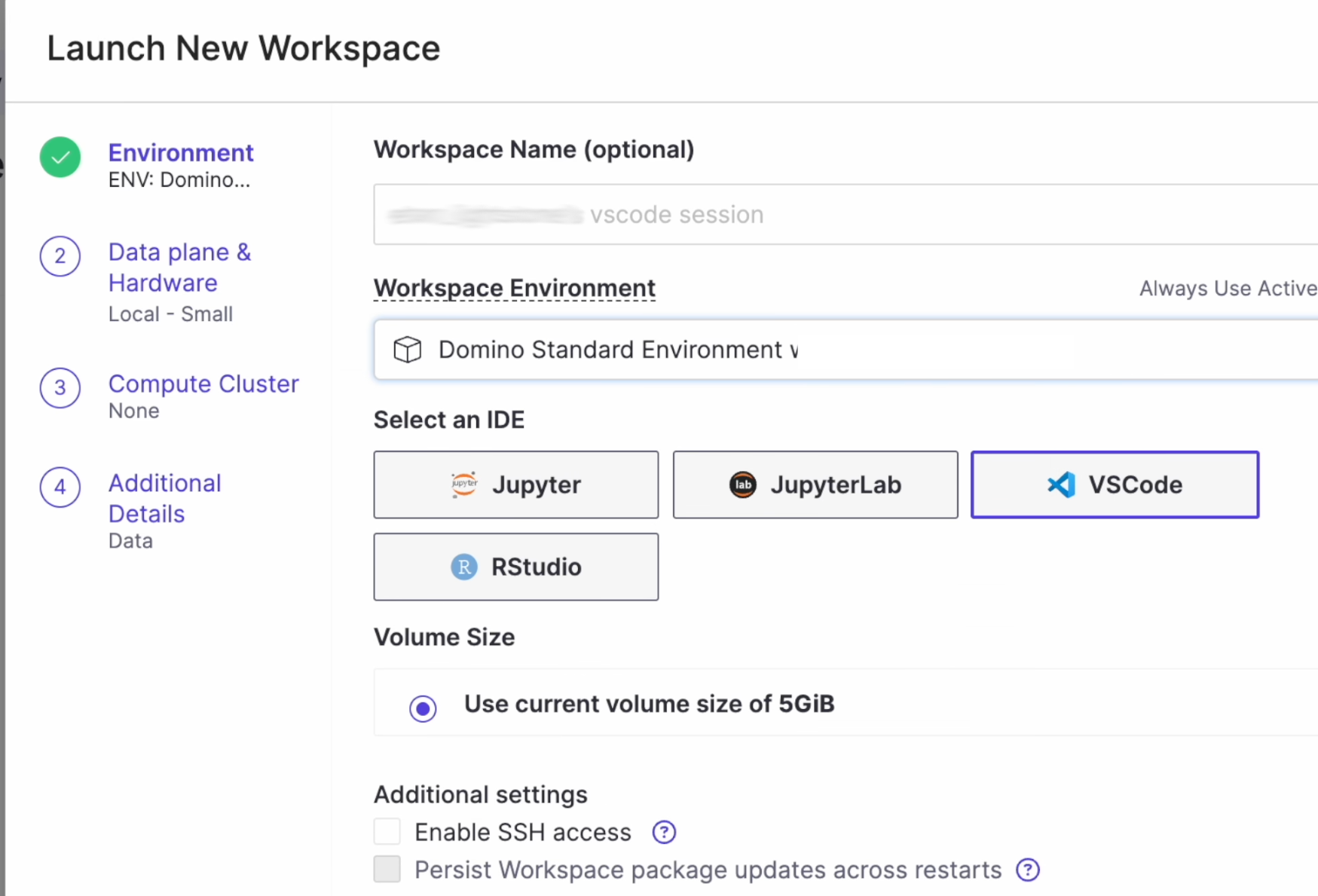
Each coding agent requires a one-time authentication with your provider account. Below are the steps for each agent:
-
Click the Claude Code icon (the orange asterisk) in the VS Code sidebar to open the Claude Code panel.
-
Choose your authentication method: Claude.ai Subscription, Anthropic Console, or Vertex or Bedrock.
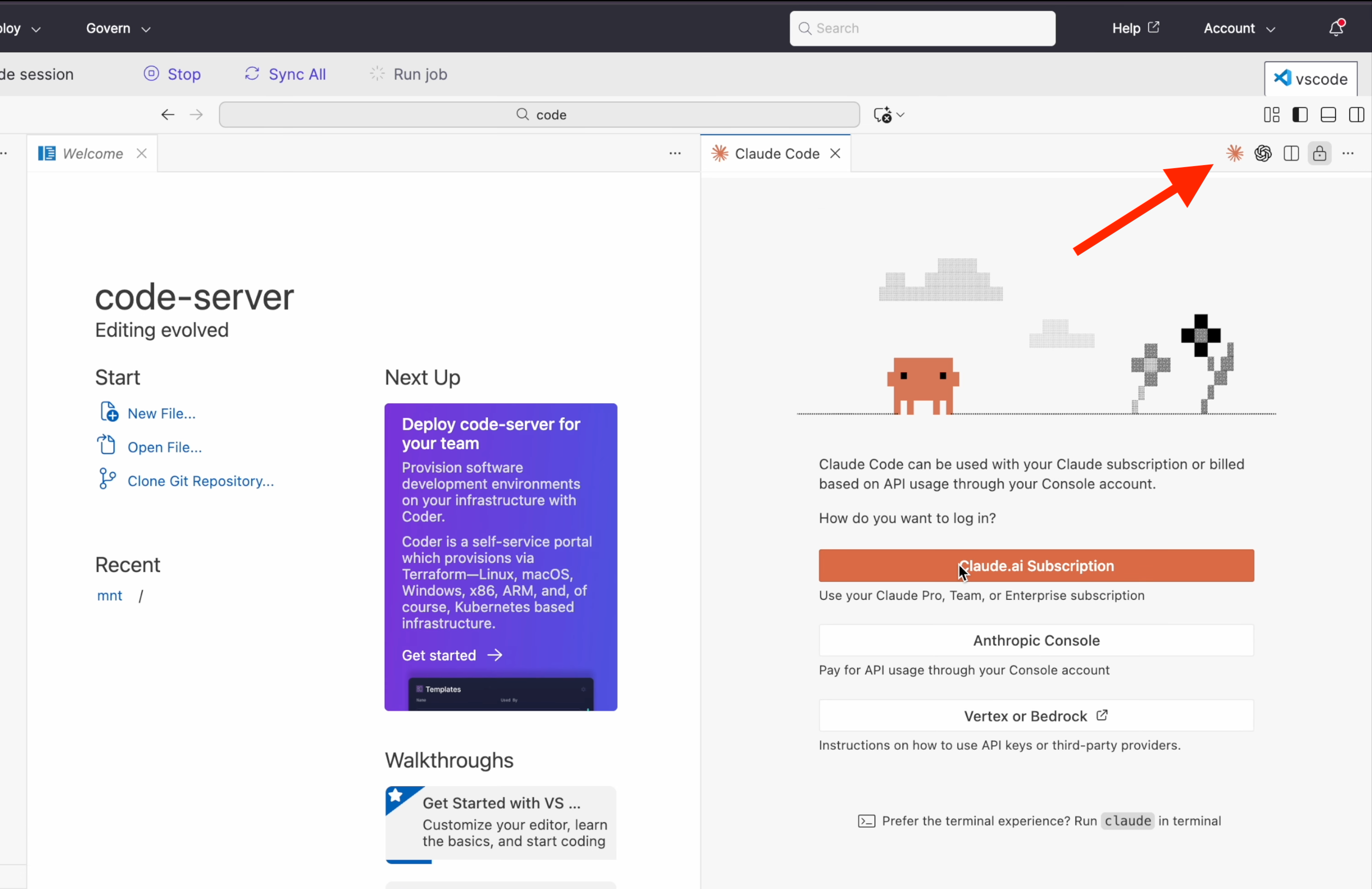
-
The panel displays a URL. Copy the URL and open the link in your browser to complete the OAuth flow.
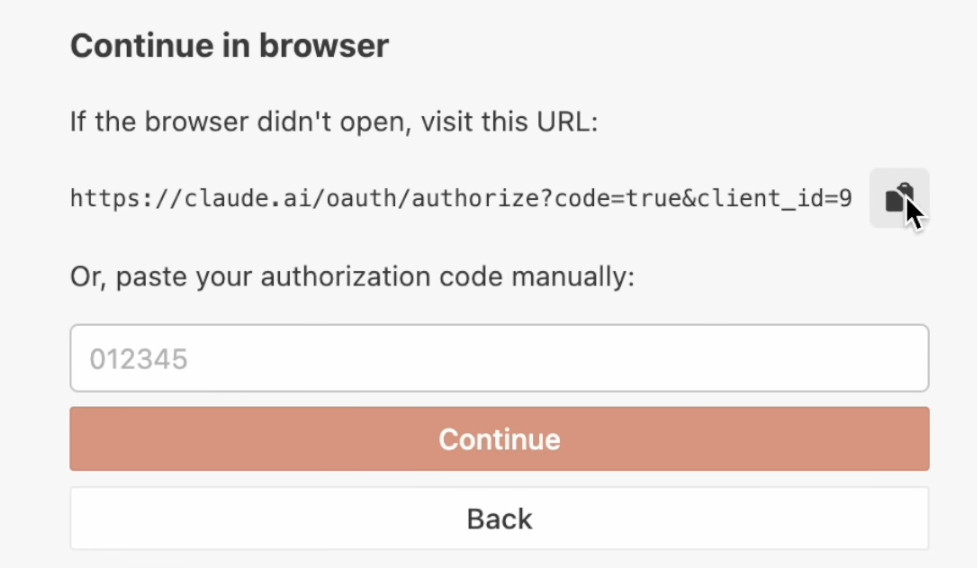
-
After you’ve authenticated in the browser, return to your workspace. Claude Code is now ready to use.
Known issues
-
The clickable link in the pop-up dialog does not work when you authenticate for the first time. Copy the URL manually and paste the link in a new browser tab.
-
If the Claude Code extension panel appears blank, refresh your browser. The panel renders correctly after a page reload.
Your coding assistant is now Domino-aware and has access to Domino Skills for running jobs, registering models, tracking experiments, and more.
Try asking your agent to explore the project files, analyze a dataset, or train a model.
The modeling assistant walkthrough has a full example.
-
Domino Skills: See the full list of Domino-specific actions your agent has access to.
-
Modeling assistant walkthrough: An end-to-end demo of data analysis, model training, and comparison.