


Train, evaluate, and deploy machine learning models through a unified no-code interface.
AutoML is a Domino extension that enables data scientists and domain experts to build, evaluate, and deploy machine learning models through a streamlined, no-code interface.
Powered by AutoGluon, AutoML automates the end-to-end model training pipeline - from data profiling and feature engineering through model selection, hyperparameter tuning, and ensembling - so you can go from raw data to a production-ready model in minutes.
AutoML primarily provides a Model Training workflow. This allows you to configure and run an AutoGluon training job that automatically trains multiple model types, ranks them on a leaderboard, and produces deployment-ready artifacts.
|
Caution
| Exported models and notebooks should only be shared with authorized users. |
You can access AutoML from the left navigation sidebar of any Domino project under the Extensions section.
Prerequisites
-
A Domino project with the AutoML extension enabled.
-
A dataset in CSV or Parquet format stored in a Domino Dataset.
-
Permission to launch Domino Jobs if you plan to train models or run Data Exploration as a Domino Job.
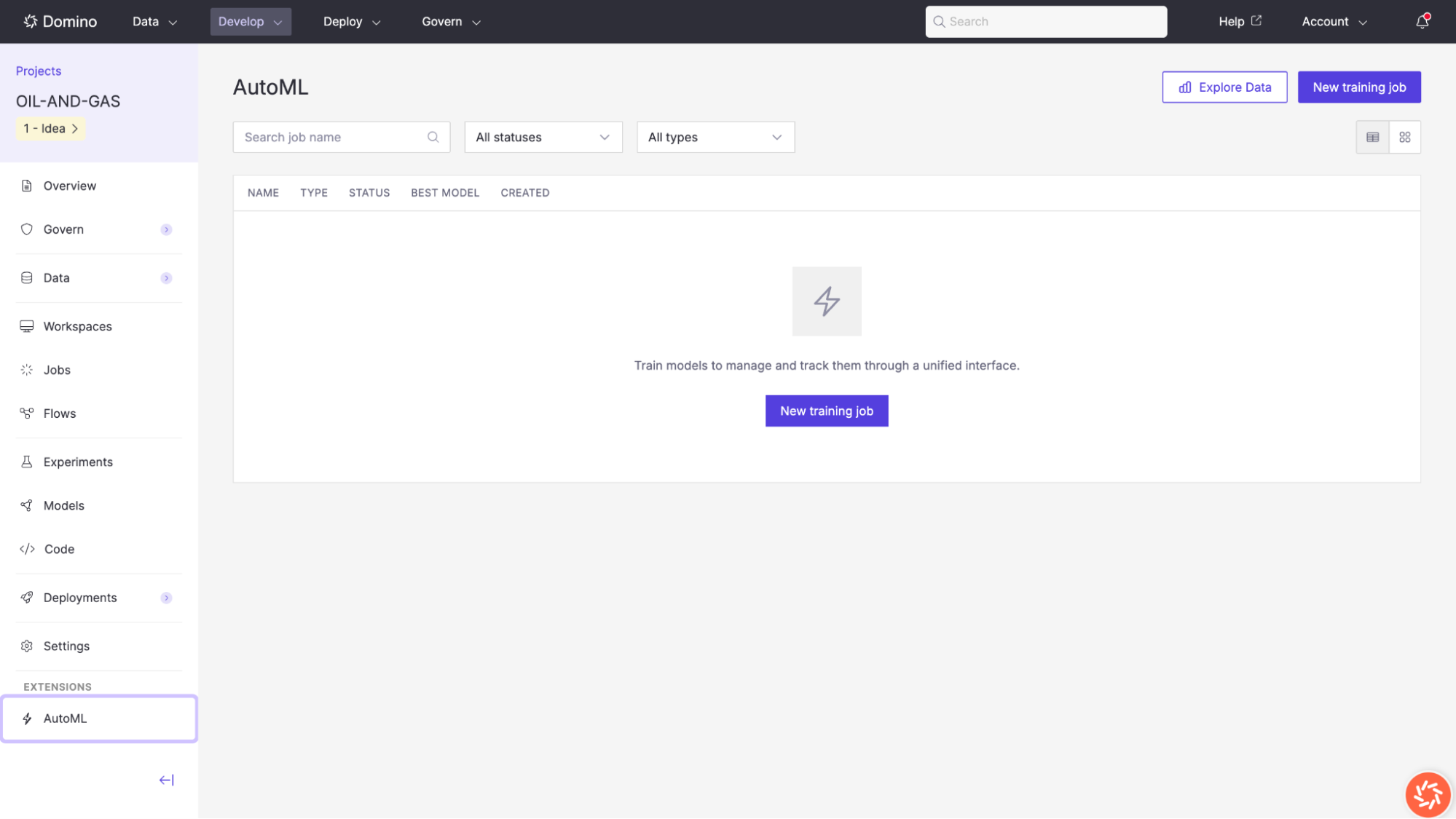
AutoML model training uses AutoGluon to automatically train, tune, and rank multiple machine learning models. The training job wizard guides you through four steps: selecting your data source, choosing a model type, configuring training parameters, and reviewing your settings before launch.
To begin, click New training job from the AutoML landing page.
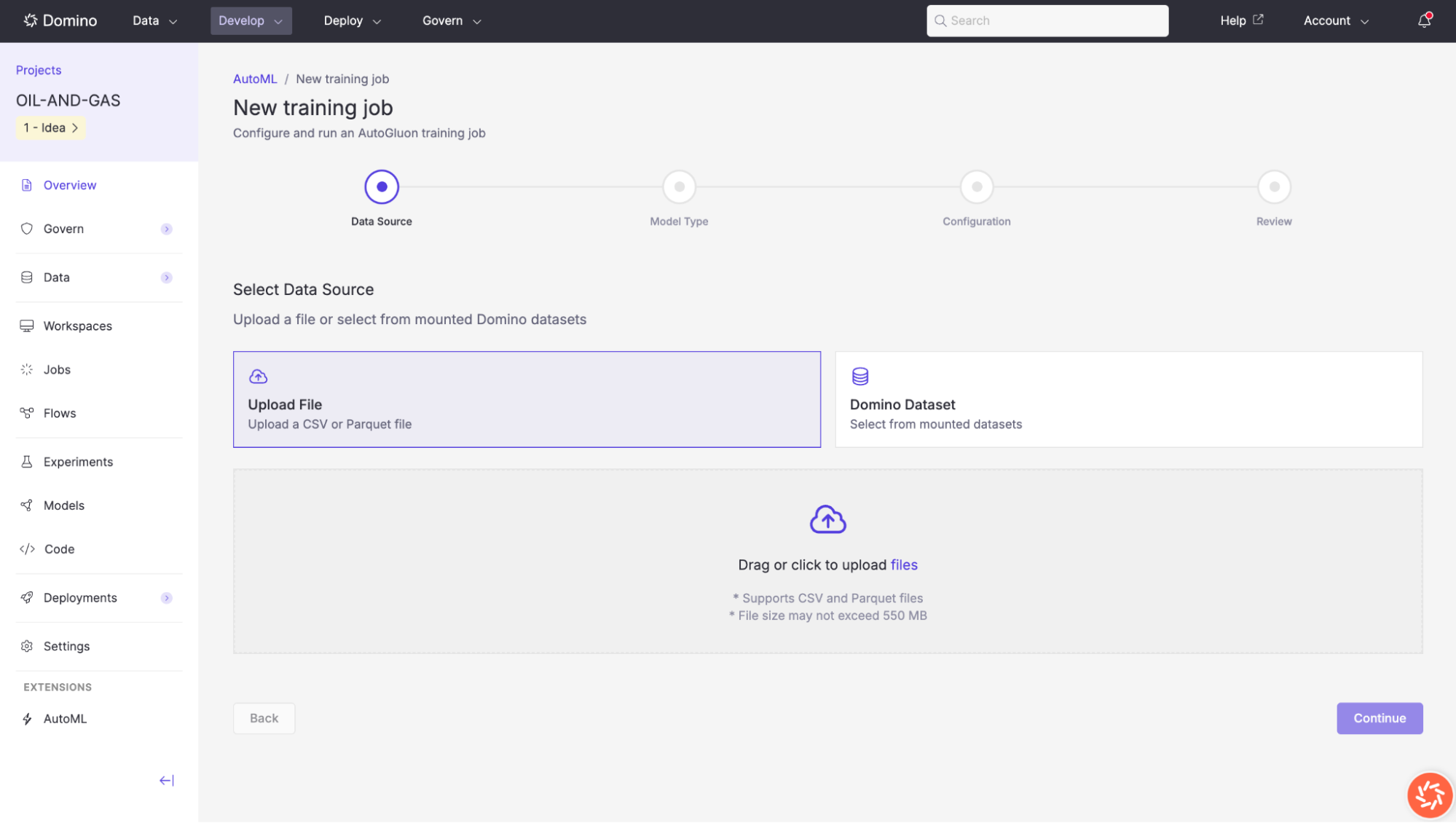
Step 1: Select a data source
Select a file in the dataset you want to use for training. Once your file is loaded, click Continue to proceed.
You can also click the shortcut in the dataset picker to open the project’s Domino Dataset area in a new browser tab so you can upload files before starting the run.
Step 2: Select a model type
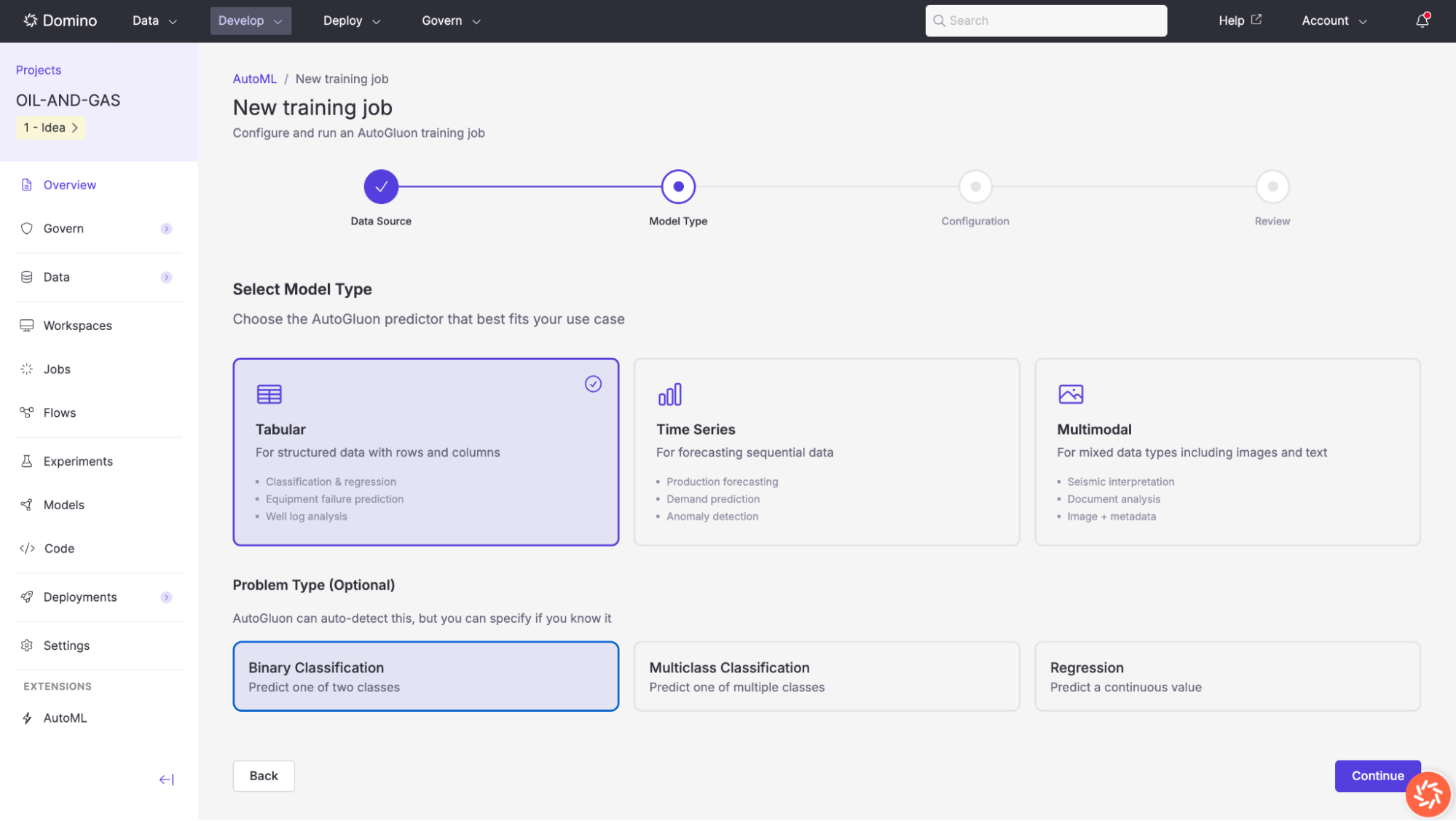
Choose the AutoGluon predictor that best fits your use case. Two model types are currently available:
| Model type | Description | Example use cases |
|---|---|---|
Tabular | For structured data with rows and columns. Supports classification and regression tasks. | Classification and regression, equipment failure prediction, well log analysis. |
Time Series | For forecasting sequential data where observations are ordered over time. | Production forecasting, demand prediction, anomaly detection. |
Problem Type (Optional)
For tabular jobs, AutoGluon can auto-detect the problem type from your target column, but you can also specify it explicitly:
| Problem type | Description |
|---|---|
Binary Classification | Predict one of two classes (e.g., |
Multiclass Classification | Predict one of multiple classes (e.g., |
Regression | Predict a continuous value (e.g., |
Click Continue to proceed to configuration.
Step 3: Configure Training
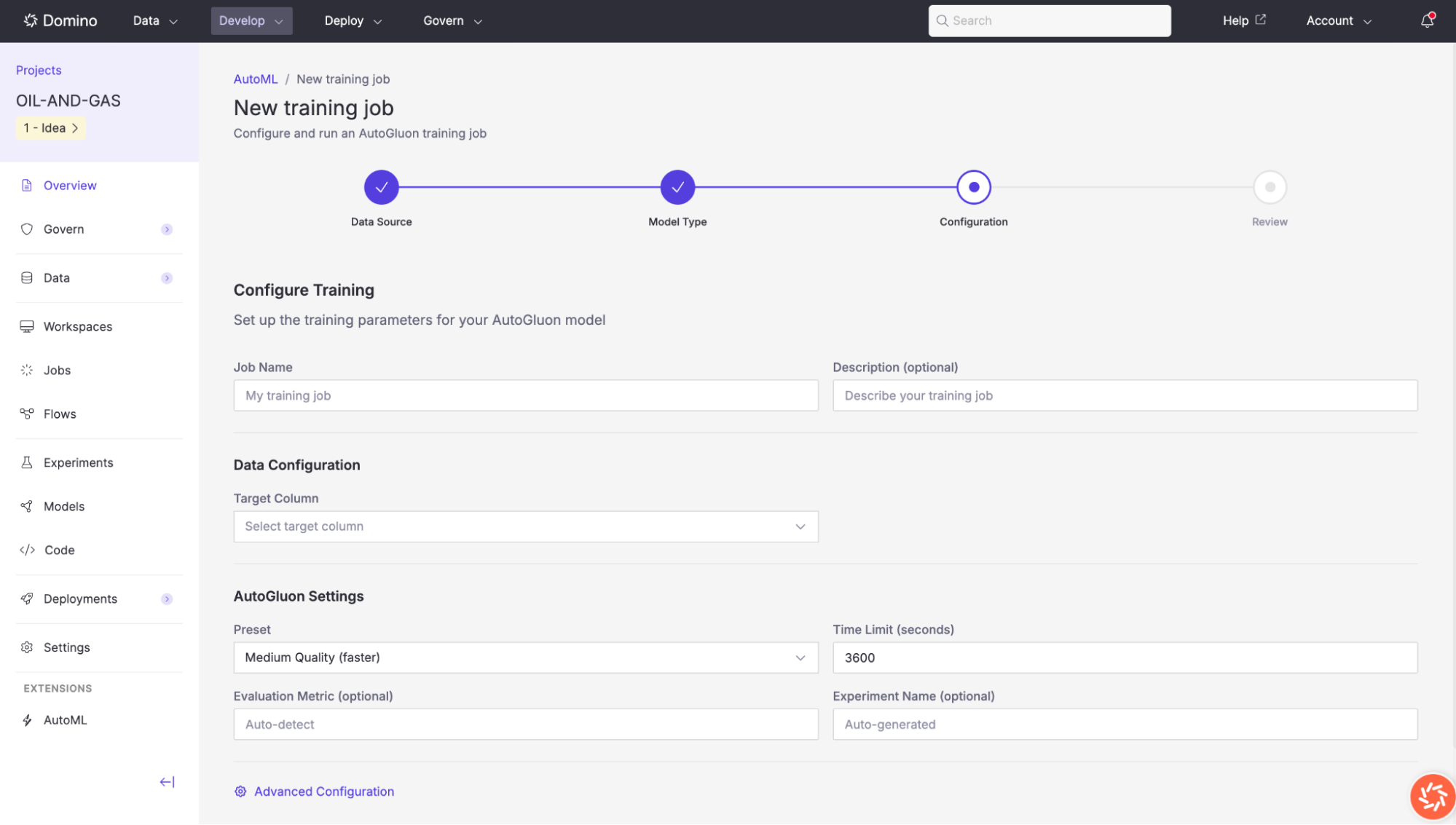
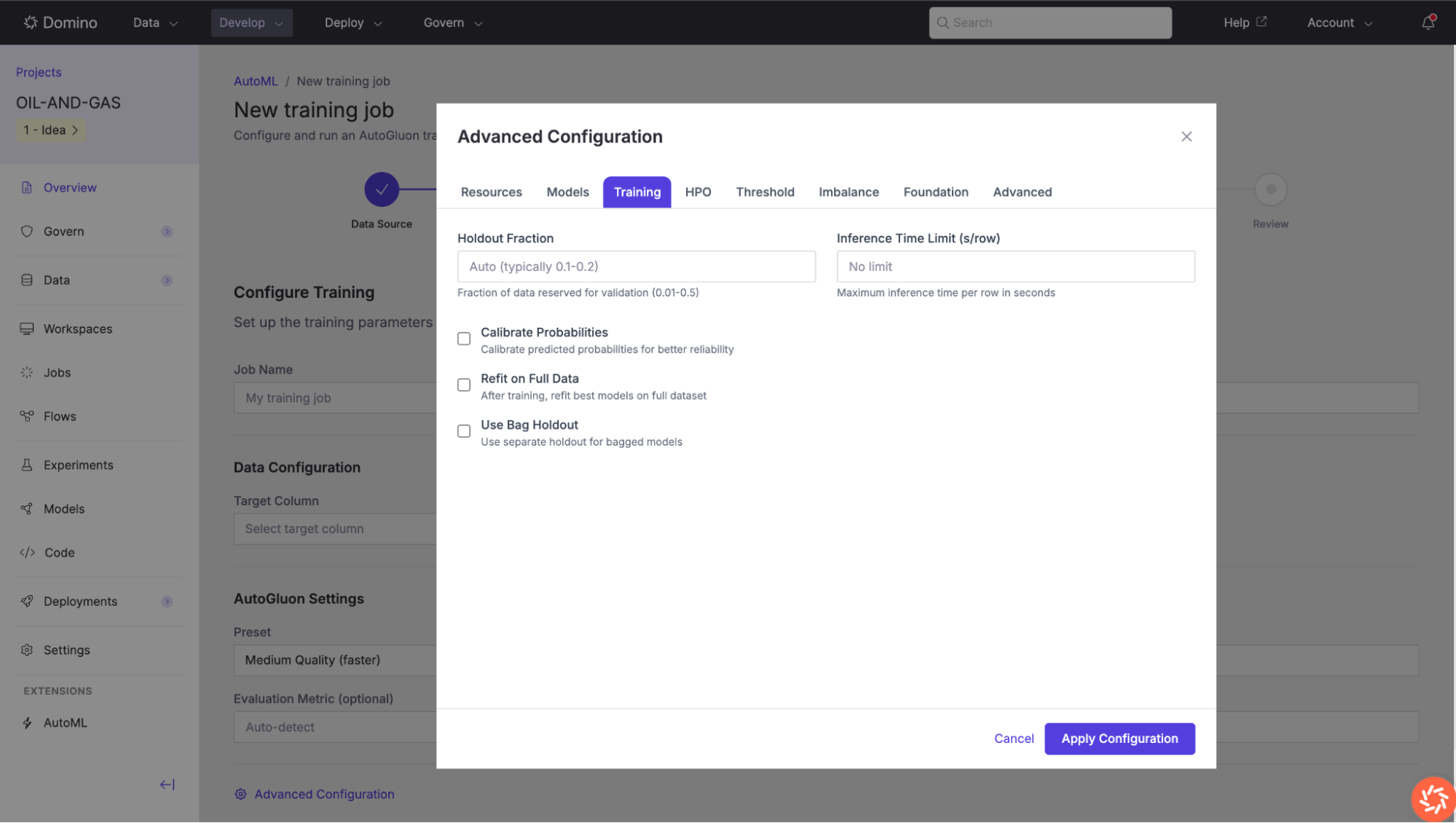
The configuration step lets you define your training job’s name, target column, and AutoGluon-specific settings.
Basic configuration
| Setting | Description |
|---|---|
Job Name | A descriptive name for this training run (e.g., |
Description (optional) | A free-text description to help you identify this job later. |
Target Column | The column in your dataset that the model should predict. Select it from the dropdown list of available columns. |
For time series jobs, this step also includes:
-
Time Column: The timestamp field used to order observations.
-
ID Column (optional): A grouping key for multi-series forecasting.
-
Prediction Length: The forecast horizon.
AutoGluon settings
| Setting | Description |
|---|---|
Preset | Controls the trade-off between model quality and training speed. |
Time Limit (seconds) | Maximum wall-clock time for the entire training run. AutoGluon will train as many models as possible within this limit. |
Evaluation Metric (optional) | The metric used to rank models on the leaderboard, e.g., |
Experiment Name (optional) | An optional Domino Experiment name for tracking this run. If left blank, a name is auto-generated. |
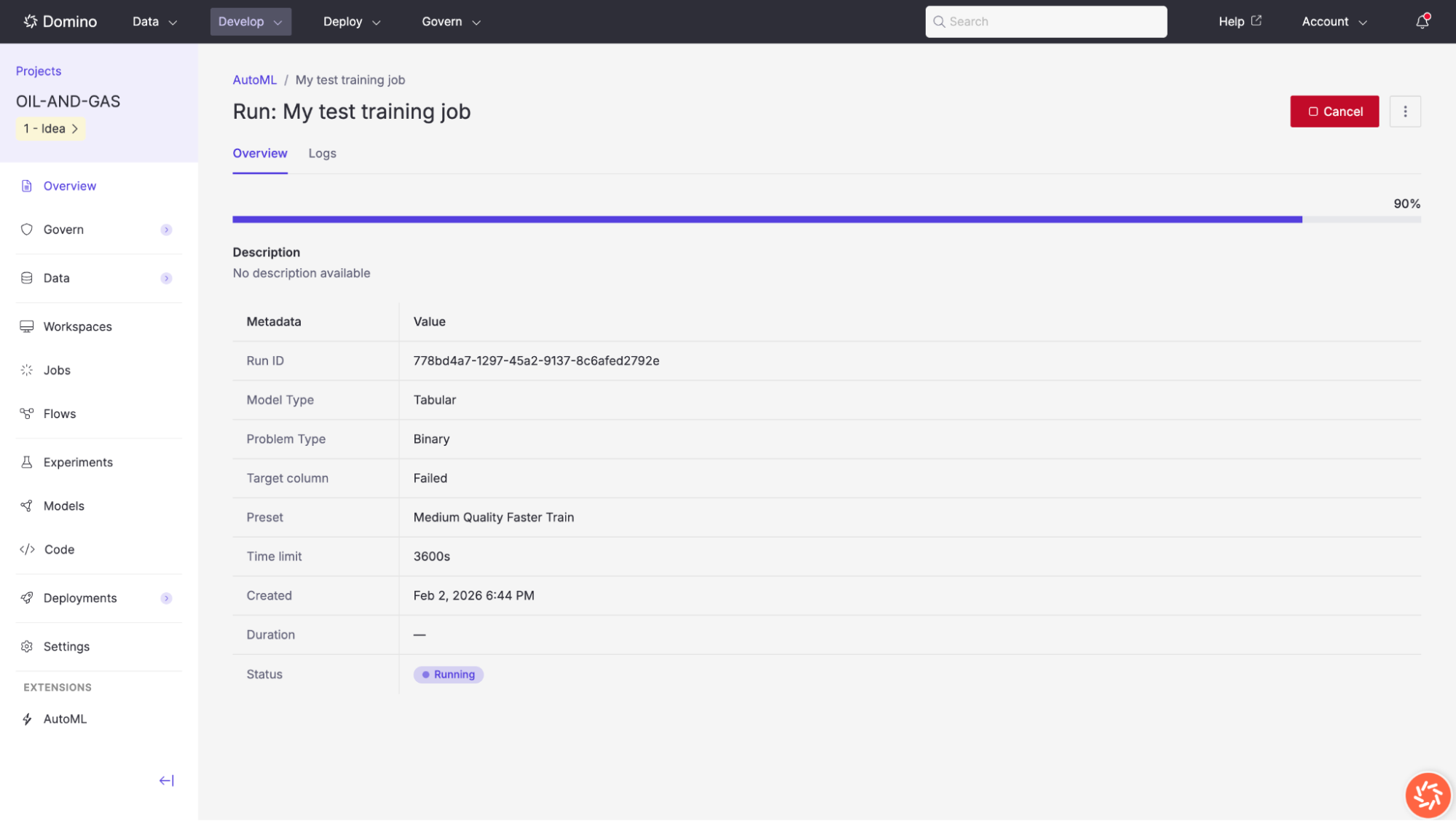
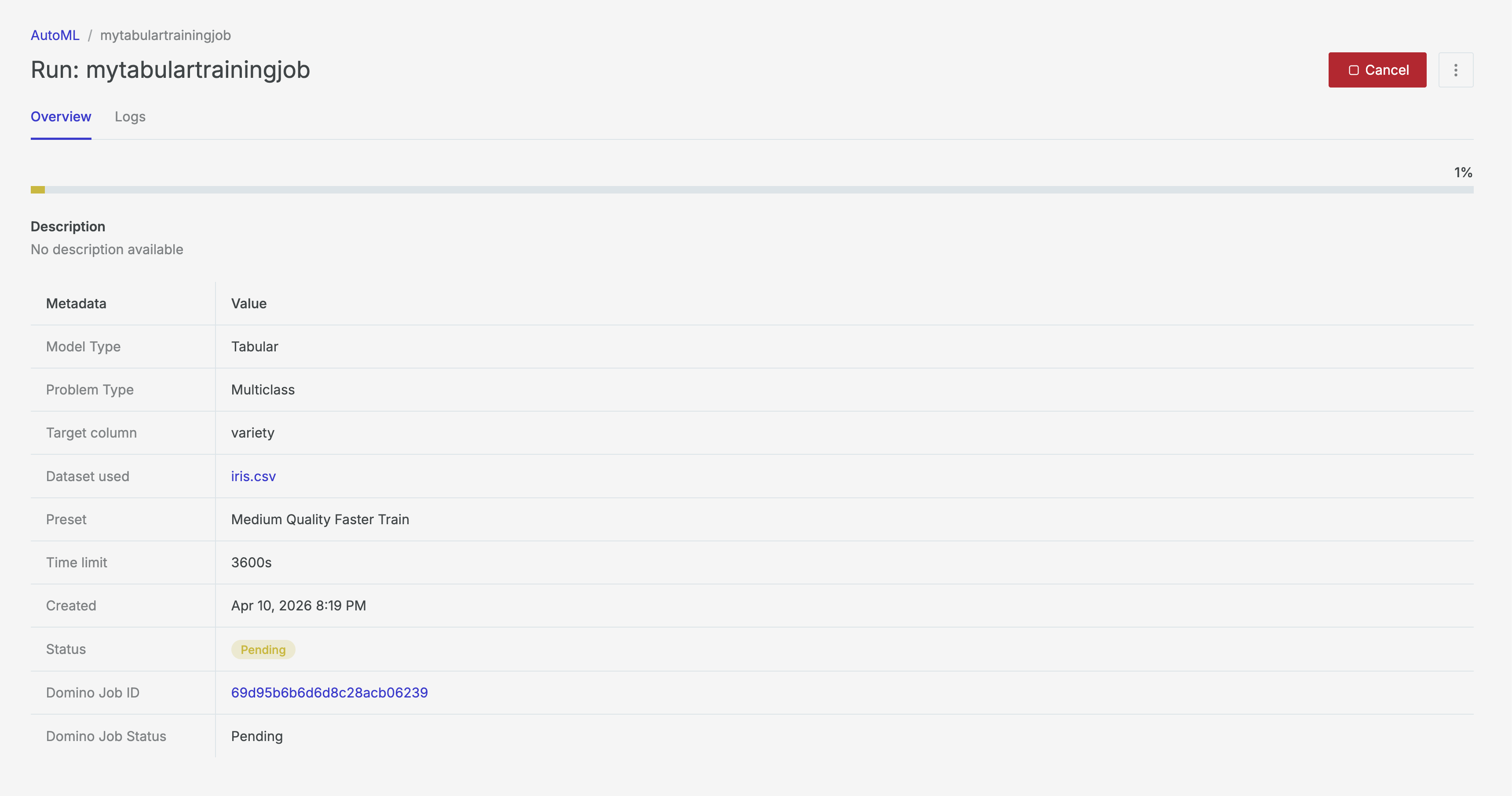
Once a training job is launched, its results page provides comprehensive information about the run’s progress and outputs.
The Overview tab displays the training job’s metadata and real-time progress. You can access the Data Exploration view, the Domino Job details page, and Domino Experiment used to track generated models.
Accessible via the dataset link in the Training Results view, the Data Exploration tool lets you analyze data quality, distributions, and correlations, and prepare transformations for subsequent model training.
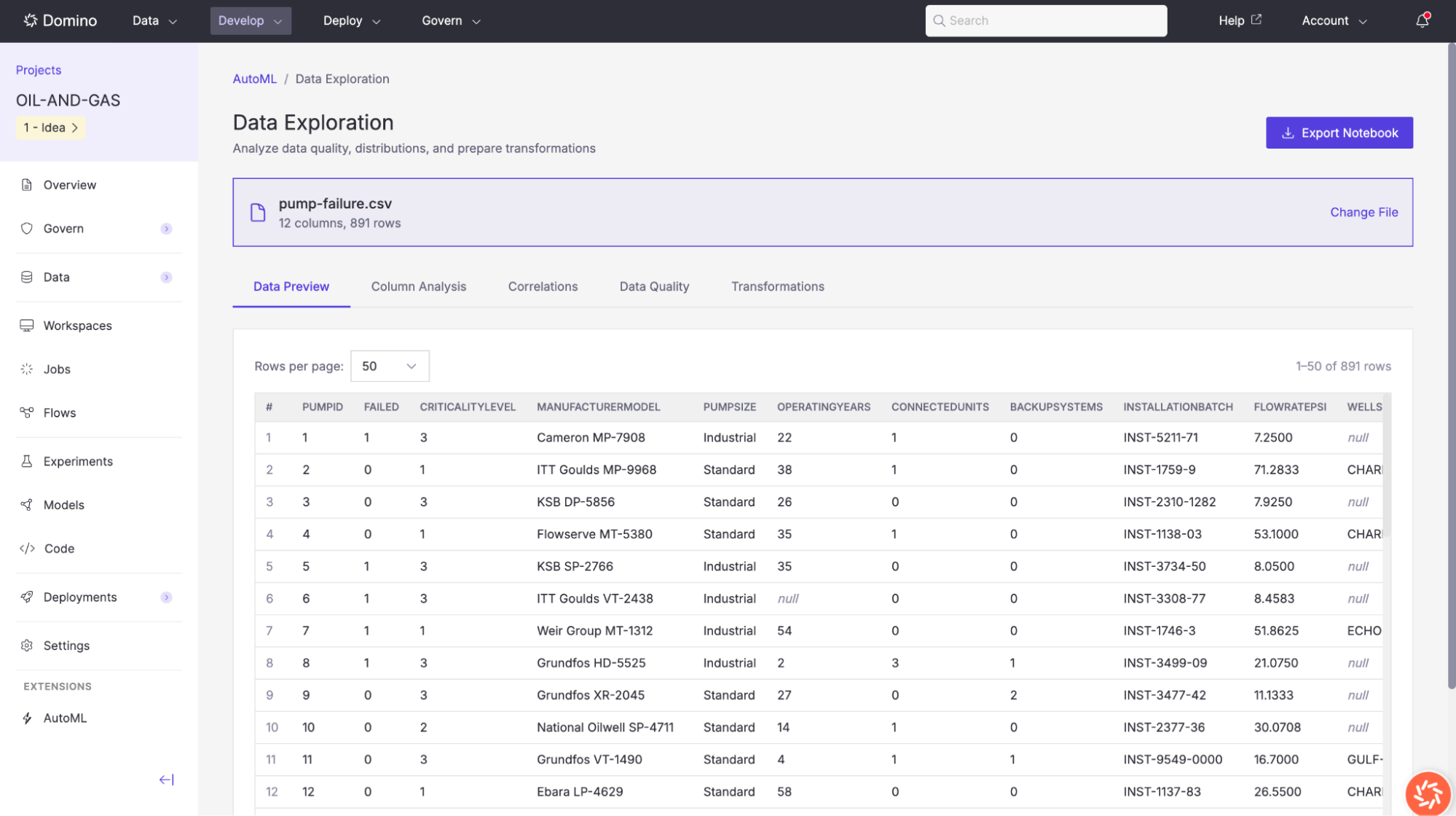
The Data Preview tab shows a sample of your raw data in table format. You can browse columns and rows to get a quick sense of the dataset’s structure and values.
If your dataset is large or takes a long time to profile, you can re-profile the data with a Domino Job using the Execution dropdown.
At any point during data exploration, you can click the Export Notebook button in the top-right corner to download a Jupyter notebook that contains all of your data profiling results and any transformations you have selected.
This notebook can be opened in a Domino Workspace for further analysis or custom preprocessing.
After training is complete, you can operationalize the best model from the Deployments tab in the Training Results view.
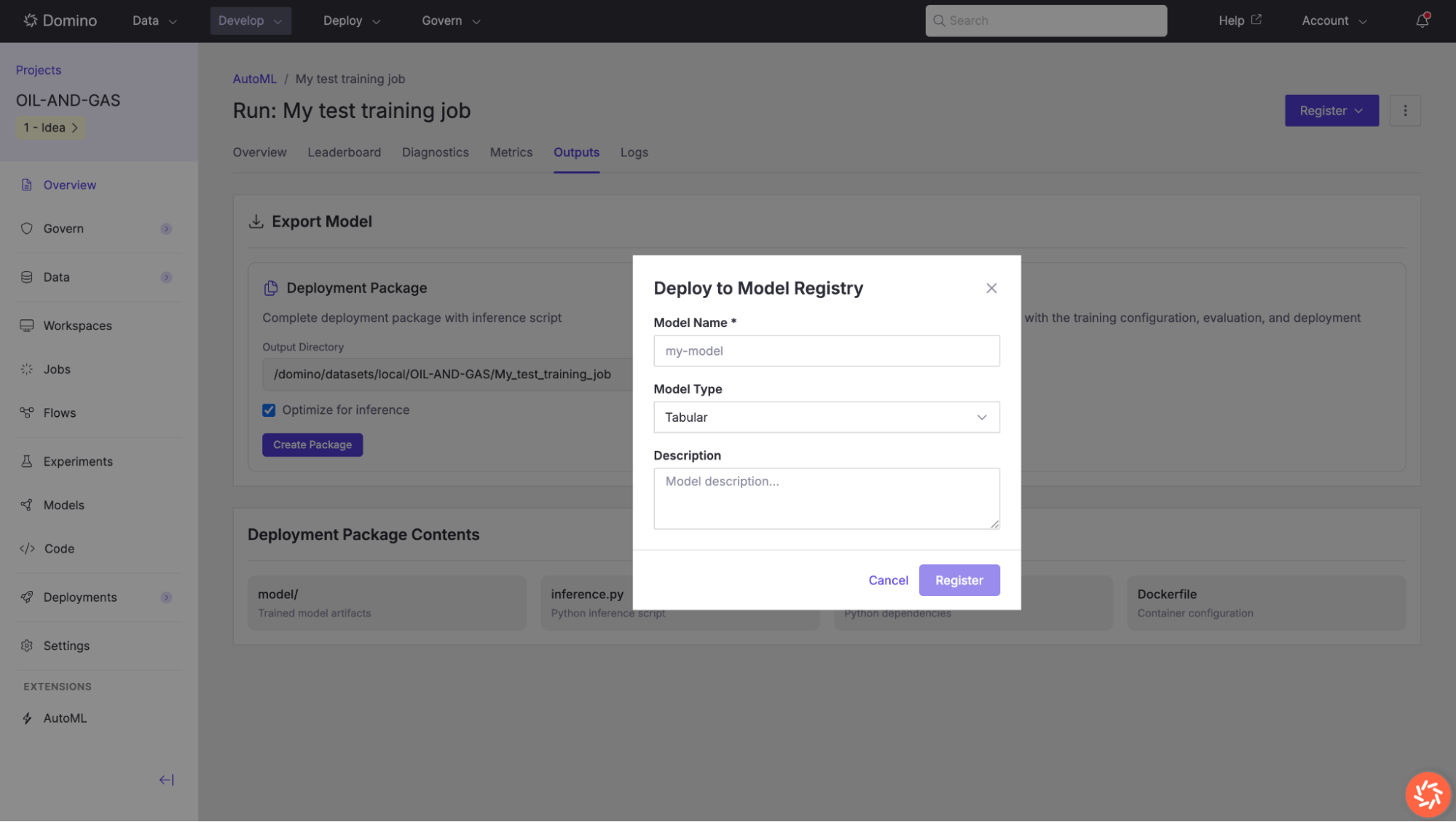
Register a Model
To register your model in Domino’s Model Registry for versioning, governance, and deployment:
-
Open the completed training run.
-
Navigate to the Deployments tab.
-
In the Model Registry section, click Register Model and fill out the details.
-
Click Register to save the model to the registry.
Once registered, the model appears in Domino’s Model Registry and can be promoted into downstream deployment workflows.
-
Review data quality for subsequent training. Use the Data Exploration tool to inspect missing values, outliers, and column types. Address high-priority recommendations (especially dropping or imputing columns with more than 30% missing data) before starting a training job.
-
Use the dashboard to manage iteration cycles. Search, filter, and switch views on the AutoML landing page as your project accumulates runs. Bulk deletion is useful for clearing experimental jobs that are no longer relevant.
-
Choose the right preset. The Medium Quality (Faster) preset is a good starting point for rapid iteration. Once you have identified a promising dataset and target, switch to Best Quality for production models, especially on smaller datasets where the additional training time yields meaningful improvements.
-
Set an appropriate time limit. A longer time limit allows AutoGluon to train more models and explore more hyperparameter configurations. For initial exploration, 600–1800 seconds is often sufficient. For production runs, consider 3600 seconds or more.
-
Exclude identifier columns. Columns with all unique values (flagged as identifiers) do not contribute meaningful signal and should be dropped before training. AutoML will flag these in both Column Analysis and Recommended Transformations.
-
Examine feature importance. After training, review the Feature Importance chart on the Diagnostics tab. If unimportant features dominate, consider removing them and retraining to reduce noise and improve generalization.
-
Consider the prediction time trade-off. Ensemble models (e.g., WeightedEnsemble_L2) typically achieve the best validation scores but may have higher inference latency. For real-time applications, compare leaderboard scores with prediction times and consider selecting a simpler model that meets your latency requirements.
-
Use the exported notebook for reproducibility. Download the Training Notebook from the Outputs tab to preserve a complete record of your training configuration. This notebook can be re-run in a Domino Workspace and serves as the starting point for any custom modifications.
-
Use the Deployments tab for operational follow-through. Register the model after a successful run, then create a Domino Model API from the same page when you are ready to serve predictions.